Artwork prep
Logo Repair and Vectorization Guide
Learn how to fix blurry, pixelated, damaged, or AI-generated logos and choose between cleanup, manual redraw, tracing, and reconstruction.
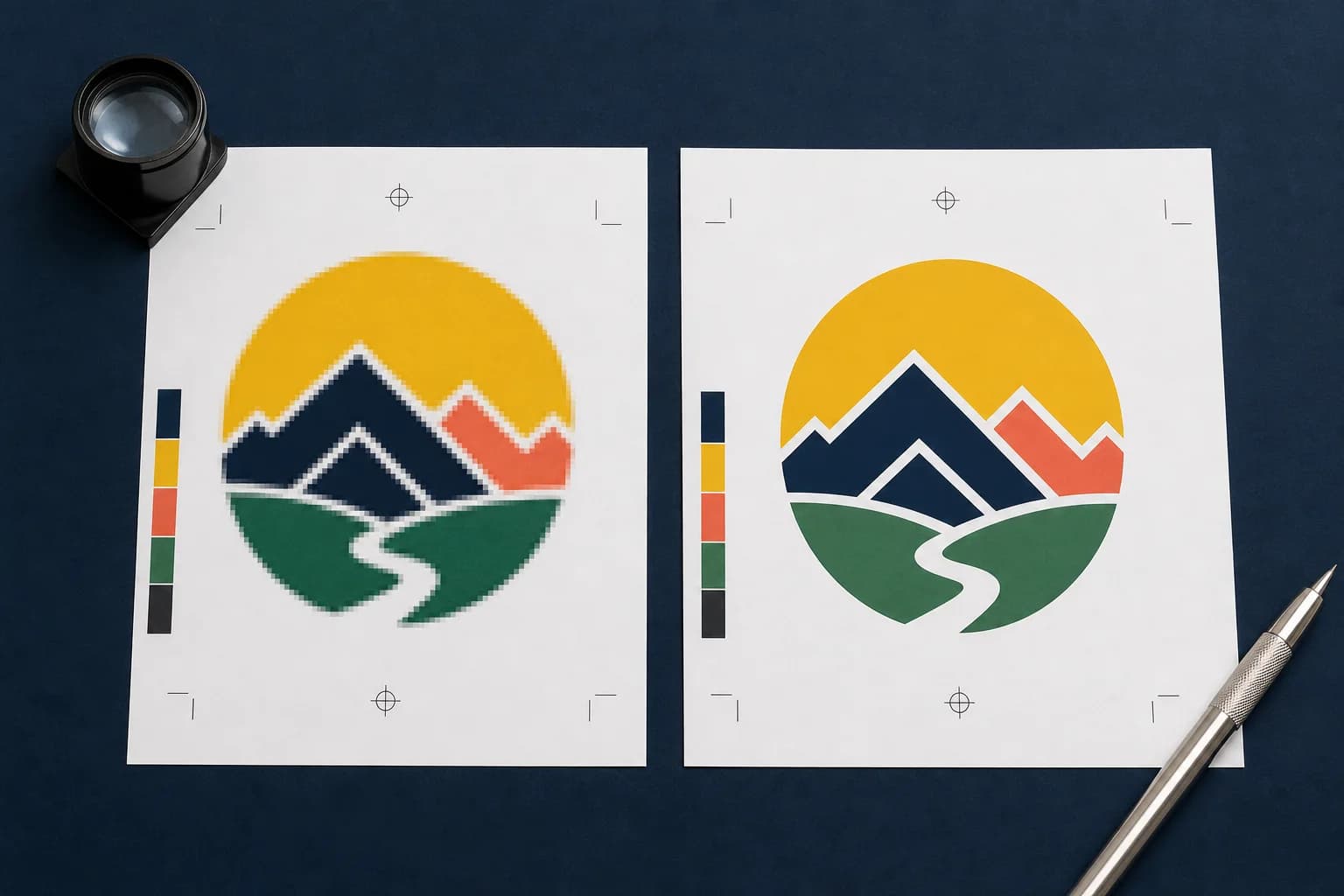
Logo repair and vectorization is the practical answer when a business has a recognizable logo but no dependable production master. The only surviving artwork may be a blurry JPEG, a pixelated PNG, a screenshot from a website, a scan of an old business card, or an AI-generated image with shapes and lettering that do not hold together under inspection. Those files can show what the logo should be, but they often cannot drive professional printing, signs, vinyl cutting, screen printing, engraving, or future design changes.
The right fix depends on what is damaged. A clean flat logo may need accurate vector conversion. A compressed logo may need lettering, spacing, colors, and edges repaired. A generated or badly degraded logo may require complete reconstruction from reference. This guide explains how to identify the problem, test the file, choose a repair level, and verify the returned artwork before it becomes the new master.
Why a logo can look fine on screen and fail in production
A screen preview hides scale. A logo displayed at two inches wide in an email signature may look smooth because the monitor is showing each source pixel at a small size. Put that same file on a storefront panel, vehicle door, trade-show wall, or wide banner and the grid becomes visible. Edges turn into steps, circles flatten, diagonal strokes become jagged, and compressed color blocks show halos that were easy to ignore on the phone.
The production process can expose different weaknesses even when the logo is not being enlarged. A vinyl cutter needs deliberate closed paths rather than fuzzy color boundaries. Screen printing may need controlled spot-color shapes and trapping decisions. Engraving and laser cutting favor simplified geometry. Small embroidery needs stitch-aware detail reduction. A logo is not truly repaired because one device can display it; it is repaired when the master supports the intended processes without forcing every vendor to guess.
Related production step: Logo repair and vectorization service. Upload a damaged or low-quality logo for manual review and redraw.
Raster, vector, and the false security of a file extension
Raster artwork stores a grid of pixels. JPEG, PNG, TIFF, and WebP are common raster formats. They are appropriate for photographs, textured illustration, paint, and continuous-tone imagery when the file has enough pixels at the final size. Vector artwork stores paths, anchor points, fills, and strokes. SVG, EPS, AI, and many PDFs can carry vector geometry that remains mathematically clean as the output size changes.
The extension does not prove the contents. A JPEG placed inside an SVG or PDF remains a JPEG. An EPS can include a low-resolution preview or embedded raster image. A PDF can contain vectors, pixels, live type, outlined type, or a mixture of all four. Open the original file in a vector editor, zoom in closely, and try selecting the shapes. If the edge becomes square or the entire logo selects as one placed image, the container did not solve the source problem.
Related production step: Image-to-vector suitability check. See whether a clean automatic trace is realistic before ordering manual work.
When automatic tracing works and when manual logo redraws are safer
Automatic tracing is useful when the reference is clean, high contrast, flat colored, and geometrically simple. Adobe Illustrator Image Trace, for example, can convert a raster source into editable paths and provides controls for color, shapes, transparency, grouping, path fidelity, noise, and other trace behavior. The result still needs inspection. Expanding a trace turns it into editable paths; simplifying can remove excessive anchor points, but neither action decides whether the reconstructed letterform or curve is faithful to the brand.
Tracing becomes unreliable when compression damage is treated as detail. A rough JPEG edge can create dozens of unnecessary points where one smooth curve belongs. Small text can become lumpy outlines. Shadows and gradients can explode into bands of shapes. Dust, paper texture, halftone dots, and scan distortion can become permanent geometry. Manual logo redraws let a designer interpret the intended construction, use fewer deliberate paths, rebuild lettering, and ignore defects that were never part of the design.
Related production step: Fix low-resolution artwork. Separate logo reconstruction from ordinary raster sizing and upscale decisions.
How AI-generated logos change the repair decision
AI-generated logos often need more than vector tracing because the mistake is inside the concept. Lettering may look plausible without forming real words. Repeated shapes change from one side to the other. Lines join inconsistently, small decorative details collapse, and gradients introduce colors that cannot be separated cleanly. A trace can preserve those mistakes with sharper edges, but sharper mistakes are not a production-ready identity.
AI logo cleanup begins by deciding what the mark is supposed to be. Important words should be rebuilt as real lettering. Symmetry should be corrected where symmetry is part of the design. Decorative noise should be removed, and details that will fail at small sizes should be simplified. The repaired system may need a full-color version, a one-color version, a black version, a white or reversed version, an icon-only version, and a simplified small-format version rather than one traced file that attempts every use.
Related production step: Why vectorization fails. Understand rough paths, embedded pixels, gradients, and over-traced detail.
Choose simple cleanup, moderate repair, or complete reconstruction
A simple vector conversion is appropriate for a clear logo with a few flat colors, basic shapes, readable lettering, and little or no missing information. The work is accurate path construction, edge cleanup, alignment, and file preparation. A medium logo repair fits artwork with blur, compression, uneven spacing, several colors, limited shading, distorted text, or small missing sections that require interpretation but not a complete redesign.
Complete reconstruction fits screenshots, badly damaged scans, detailed mascots, custom lettering that no longer exists, generated artwork with broken structure, or logos that need both a faithful master and a production simplification. Complexity is based on the visible reconstruction work, not the final printed dimensions. A simple two-color mark can scale to a building after it is rebuilt, while a one-inch illustrated crest can remain complex because the source contains many relationships that must be resolved.
Related production step: Embroidery digitizing service. Turn the repaired logo reference into placement-specific stitch instructions.
Check the files you receive before adopting a new logo master
A useful vector delivery should include more than a thumbnail. Open the SVG, EPS, or editable PDF and inspect curves, corners, holes, overlaps, alignment, lettering, and color shapes. Zoom in and confirm that smooth curves use sensible anchor points. Check that shapes intended for vinyl or fabrication are closed where required. Confirm whether type is outlined, packaged, or otherwise handled according to the receiving shop's instructions.
Compare the returned artwork with the strongest reference at several sizes. Check the full-color version on light and dark backgrounds. Review one-color and reversed versions if they were requested. Confirm RGB, CMYK, HEX, or suggested spot-color references without treating a screen value as a physical contract proof. Then test the exact destination: send the sign shop the vector master, give the apparel decorator a clean reference for digitizing, and use the print-ready PDF or appropriate raster export for systems that require it.
Related production step: Print shop proofing software. Approve a named production revision and preserve the decision record.
Build a logo package that supports signs, print, apparel, and future changes
The strongest result is a small logo system rather than one mystery file. Keep an editable master, a print-ready PDF, an SVG, an EPS, a high-resolution transparent raster version where needed, and a simple usage note. Useful production variations can include full color, one color, black, white, horizontal, stacked, icon only, and a reduced-detail version for small applications.
Do not overwrite the original reference. Store it beside the repaired master and document which version was approved. If a vendor adjusts the artwork for a machine process, keep that output separate: an embroidery stitch file, vinyl cut path, engraving layout, or imposed print file belongs to its specific workflow. The master remains the source for future controlled changes, while each production artifact records how the logo was adapted for a real device and material.
Related production step: Best file format for professional printing. Choose the right handoff for PDF, raster, vector, and machine workflows.
Build a handoff the next person can verify
A production-ready handoff should contain one clearly named current file, the finished dimensions, the expected bleed, and a short record of what was checked. If a warning remains, describe the decision instead of hiding it. For example: the customer accepted 170 effective PPI because the banner will be viewed from across a room. That note is more useful than a folder containing five unexplained exports.
Keep the editable source separate from the approved output. The source is where future changes belong; the approved PDF, PNG, TIFF, SVG, or machine file is the artifact that moves into production. When a revision arrives, create a new version and preserve the approval trail. This small discipline prevents an old attachment, an unapproved crop, or a mystery color conversion from becoming the file that gets printed. It also gives estimating, customer service, prepress, and production the same answer when a job returns.
Related production step: How to make an AI-generated image print ready. Continue with the next related print-production guide.
Production checklist
Put this into practice
- 1Collect the largest and clearest surviving logo references, including old print pieces when useful.
- 2Identify whether the problem is low raster resolution, damaged construction, bad lettering, or an AI-generated design flaw.
- 3Test whether the original contains selectable vector paths instead of trusting the extension.
- 4Choose simple conversion, logo repair, or complete reconstruction based on the visible work.
- 5State the intended uses, required versions, colors, turnaround, and non-negotiable details.
- 6Inspect the returned SVG, EPS, PDF, and raster preview before adopting the repaired master.
- 7Preserve the original reference, approved master, and machine-specific production files as separate revisions.
Frequently asked questions
Does a print-ready check replace the printer's proof?
No. Preflight reduces technical risk, while the printer's proof remains the final approval for stock, ink, finishing, placement, and production-specific tolerances.
Should I keep the original artwork?
Yes. Keep the untouched source and create a separate prepared output so a crop, color conversion, or bleed extension can be revised without damaging the original.
Check the actual artwork
Turn the article into a production decision.
Run a free scan, choose the finished size, and review DPI, bleed, crop, color, transparency, and file integrity before the job reaches a printer.
Run a free scan